Umbra OLED: a true-black VS Code theme that is easy on the eyes
(vs-code, open-source, accessibility) 12 min read by Bartosz Pachołek
Umbra OLED keeps every large surface of VS Code at #000000, so OLED pixels stay off, and colors the code in warm tones capped well below pure white. A validator in CI enforces both. Get it from the VS Code Marketplace or GitHub.
We have released Umbra OLED, a free color theme for Visual Studio Code built for OLED screens and long sessions. Every large surface of the window is pure black (#000000), so on an OLED panel those pixels are simply off. The code sits on top in warm, muted colors, and nothing in the theme comes close to pure white.
You can install it from the Umbra OLED page on the Visual Studio Marketplace or get it from the vscode-umbra-oled repository on GitHub. This post covers what it looks like, which choices are there for your eyes and which for the panel, what we measured against VS Code's built-in dark themes, and how a small validator in CI stops any of it from drifting.
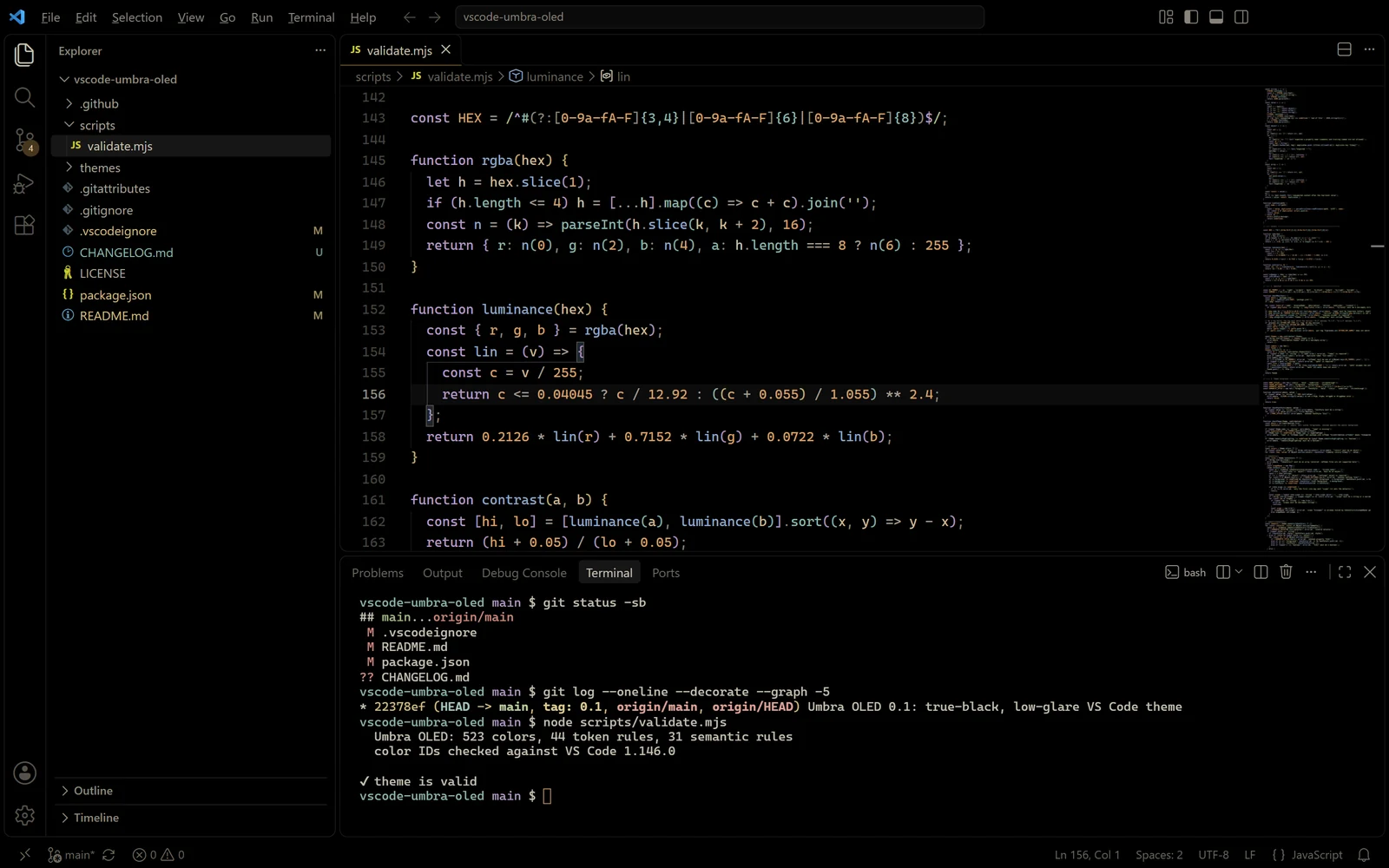
Dark is not the same as black
Most dark themes are dark gray. Dark 2026, the default dark theme in VS Code 1.146, paints the editor #121314 and the sidebar #191A1B. Dark Modern, also built in, uses #1F1F1F and #181818. On an LCD that makes little difference, because the backlight shines behind every pixel anyway. An OLED panel has no backlight: each pixel makes its own light, so a gray pixel is a lit pixel and a black one is off.
Going all the way to black has a catch of its own. Many black themes keep pure white text, and white strokes on a black field tend to leave a halo around the letters. It can look crisp at first and feel harsh by evening. So Umbra OLED pulls in two directions at once: as much black as possible, and less contrast than the maximum.
Black where it counts
The validator holds 16 surfaces to exactly #000000: the editor and its gutter, the tab bar and both kinds of tabs, the sidebar and its section headers, the activity bar, the panel, the terminal, the status bar (also with no folder open), the title bar (active and inactive), the minimap and the breadcrumbs. Counting sticky scroll, empty editor groups and the like, 30 color keys in the theme are pure black.
Panels are separated by thin near-black borders (#141414 and #1a1a1a) instead of gray fills. Floating widgets are the main exception: hovers, suggestions, menus and the command palette sit on #0b0b0b, so a popup still reads as something above the code.
Static chrome is dim on purpose. On an OLED, the parts of the screen that never change are the ones at risk of burn-in, so the status bar text is #6c675f, inactive activity bar icons are #55514b, and there are no colored strips. Dark Modern puts the remote (WSL, SSH) badge and the debugging status bar on solid #0078D4 blue. In Umbra OLED the remote badge is #0f0f0f with bronze text, and a debug session turns the status bar a dim brown, #1f160c.
The accent is a muted bronze, #8a6c43. It marks the active tab, the active activity bar item and the active panel title, and that is about all the color the chrome gets.
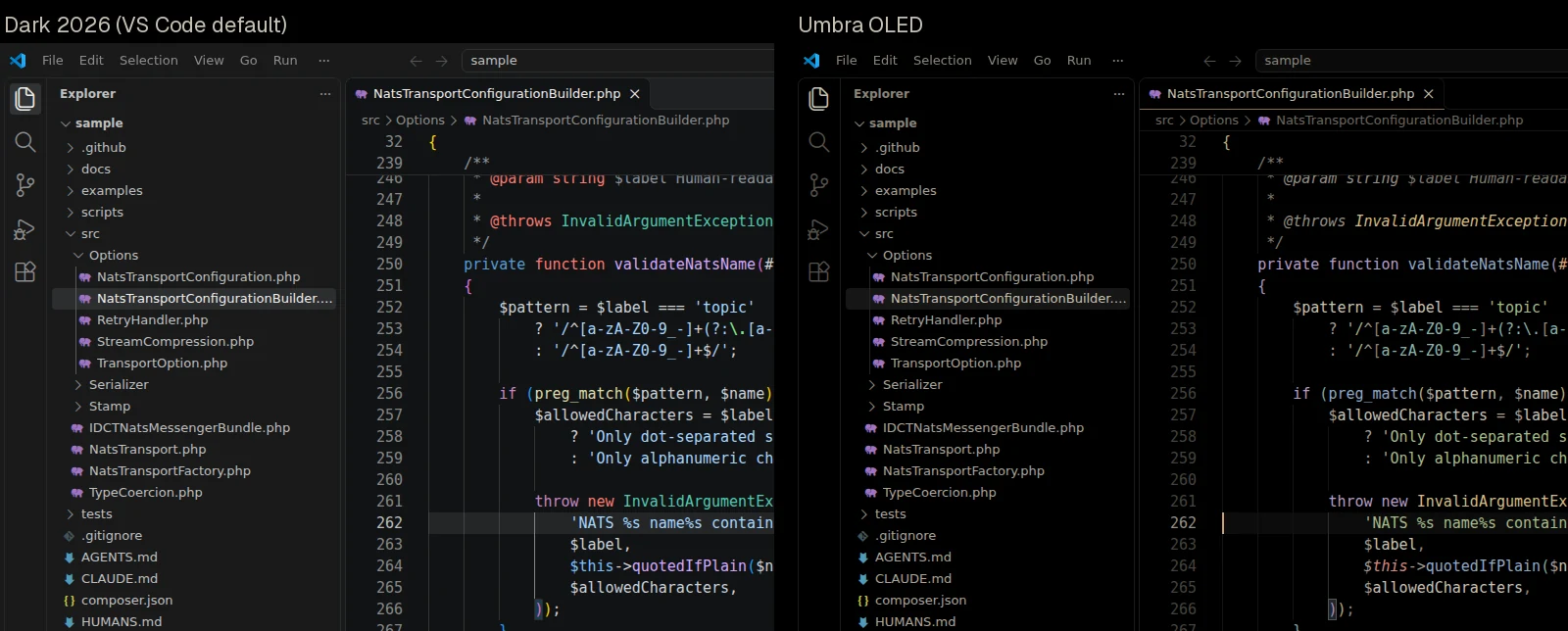
What we measured
"Mostly black" is easy to claim, so we counted. We opened the same VS Code 1.146.0 window (1440x900, on Linux under Xvfb) on the same PHP file from symfony-nats-messenger, captured it once per theme, and ran this script over the captures:
#!/usr/bin/env python3
"""How many pixels are fully off, and how much light the rest give off.

Usage: python3 pixels.py window1.png window2.png ...
"""
import sys

from PIL import Image

# sRGB value (0-255) -> linear light (0-1), the same formula WCAG contrast uses
LINEAR = [(v / 255 / 12.92) if v <= 10 else ((v / 255 + 0.055) / 1.055) ** 2.4
          for v in range(256)]

print(f"{'screenshot':<18}{'pixels off':>11}{'light':>8}{'blue share':>12}")
for path in sys.argv[1:]:
    img = Image.open(path).convert("RGB")
    total = img.width * img.height
    colors = img.getcolors(total)  # [(count, (r, g, b)), ...]
    black = sum(n for n, rgb in colors if rgb == (0, 0, 0))
    r = g = b = 0.0
    for n, (pr, pg, pb) in colors:
        r += n * LINEAR[pr]
        g += n * LINEAR[pg]
        b += n * LINEAR[pb]
    light = (0.2126 * r + 0.7152 * g + 0.0722 * b) / total  # 1.0 = all white
    name = path.rsplit("/", 1)[-1]
    print(f"{name:<18}{black / total:>11.1%}{light:>8.2%}{b / (r + g + b):>12.1%}")
"Pixels off" are pixels that are exactly #000000. "Light" is the average linear luminance of the window, as a share of an all-white window. "Blue share" is blue's part of the linear RGB light.
python3 pixels.py dark-modern.png dark-2026.png umbra-oled.png
screenshot         pixels off   light  blue share
dark-modern.png          0.0%   2.78%       33.4%
dark-2026.png            0.0%   2.38%       37.7%
umbra-oled.png          85.2%   1.03%       29.6%
With Umbra OLED, 85.2% of the window is switched off, against none at all with either built-in theme. The whole window gives off 1.03% of the light of a white screen, against 2.38% for Dark 2026: about 2.3 times less. The light it does give off is also warmer, with blue's share down from 37.7% to 29.6%.
Two caveats, so the numbers are not read as more than they are. These are pixel values, not a power meter: how much battery an OLED laptop saves depends on the panel, the brightness setting and how much text fills the screen. And on an LCD the backlight stays on whatever the theme does, so there Umbra OLED is simply a very dark theme. What the table does show is that "black" here is not a figure of speech.
Easy on the eyes: a contrast budget
The eye-related rules are numbers, and CI checks every one of them:
- No glare. No opaque color in the theme may exceed 15:1 against black. Pure white is 21:1. The brightest color anywhere in Umbra OLED is button text,
#e6d5bb, at 14.6:1. - Body text in a band. The editor foreground must land between 7:1 and 13:1. Umbra OLED uses a warm off-white,
#c7c0b3, at 11.6:1: above WCAG AAA (7:1), and well short of white. - Nothing too dim. Every syntax color must reach at least 4.5:1 (WCAG AA), comments included.
To put those numbers next to VS Code's own themes, we pulled the editor and comment colors out of the theme files that ship with VS Code 1.146.0 and ran them through the same WCAG formula:
// WCAG contrast of a text color on a background: node contrast.mjs fg bg [fg bg ...]
const lin = (v) => (v <= 0.04045 ? v / 12.92 : ((v + 0.055) / 1.055) ** 2.4);
const lum = (hex) => {
  const [r, g, b] = [1, 3, 5].map((i) => parseInt(hex.slice(i, i + 2), 16) / 255);
  return 0.2126 * lin(r) + 0.7152 * lin(g) + 0.0722 * lin(b);
};
const ratio = (a, b) => {
  const [hi, lo] = [lum(a), lum(b)].sort((x, y) => y - x);
  return (hi + 0.05) / (lo + 0.05);
};

const args = process.argv.slice(2);
for (let i = 0; i < args.length; i += 2) {
  const [fg, bg] = [args[i], args[i + 1]];
  console.log(`${fg} on ${bg}: ${ratio(fg, bg).toFixed(2)}:1`);
}
node contrast.mjs \
  "#ffffff" "#000000" \
  "#CCCCCC" "#1F1F1F" \
  "#BBBEBF" "#121314" \
  "#c7c0b3" "#000000" \
  "#6A9955" "#1F1F1F" \
  "#8b949e" "#121314" \
  "#7d776d" "#000000"
#ffffff on #000000: 21.00:1
#CCCCCC on #1F1F1F: 10.26:1
#BBBEBF on #121314: 9.95:1
#c7c0b3 on #000000: 11.62:1
#6A9955 on #1F1F1F: 4.95:1
#8b949e on #121314: 6.05:1
#7d776d on #000000: 4.73:1
In order: pure white on black, then body text in Dark Modern, Dark 2026 and Umbra OLED, then comments in the same three. Umbra OLED's body text has slightly more contrast than VS Code's own dark themes, not less. What makes it calmer is everything around the text: a background that is actually black, and an off-white that never reaches the 21:1 of pure white. Comments go the other way. At 4.7:1 they are dimmer than in Dark 2026, on purpose, so they step back without becoming hard to read.
We will not pretend a color theme is a medical device, and we cannot promise how your eyes will feel after a day with it. What we can promise is the numbers above, and that the build fails if one of them slips.
The palette, and the details in it
The syntax colors are muted, warm pastels, all measured against black:
| Role | Color | Contrast on black |
|---|---|---|
| Text | #c7c0b3 |
11.6:1 |
| Comments | #7d776d |
4.7:1 |
| Keywords | #b69cc6 |
8.6:1 |
| Functions | #8fa7c6 |
8.5:1 |
| Types and classes | #d4bc82 |
11.3:1 |
| Strings | #a5ba88 |
10.0:1 |
| Numbers and constants | #d9a06e |
9.2:1 |
| Properties and builtins | #88b5aa |
9.2:1 |
| Parameters | #cdb99a |
11.0:1 |
Tags, this, errors |
#d68a80 |
7.8:1 |
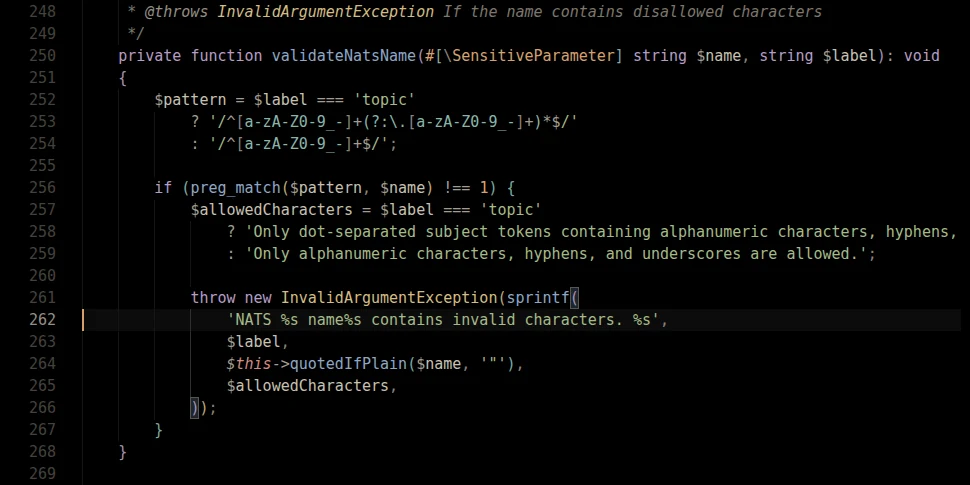
Here is the PHP from the measurement above, at its real size:
A few of the smaller decisions in the theme file:
$this,selfandsuperare italic rose, so the object you are inside stands apart from the values you pass around.- In PHP and shell scripts, the
$sigil is a notch dimmer (#a39d92) than the name after it, so names read first. - Semantic highlighting is on, with 31 semantic rules. When a language server marks a variable as readonly, it takes the constant color.
- Bracket pair colorization cycles through three muted colors (gold, lavender, teal) instead of a bright set.
- The integrated terminal uses the same palette. Its ANSI black is
#2a2826, not#000000, so "black" text printed by a CLI tool is still visible on the black background. - Markdown, JSON, YAML, TOML, INI and dotenv files have their own rules: keys in teal, section headers in bold gold, headings in bold amber.
- Diffs use faint tints instead of solid blocks. Added lines get the string green at about 7% opacity (
#a5ba8812), and the changed text inside them about 13% (#a5ba8822).
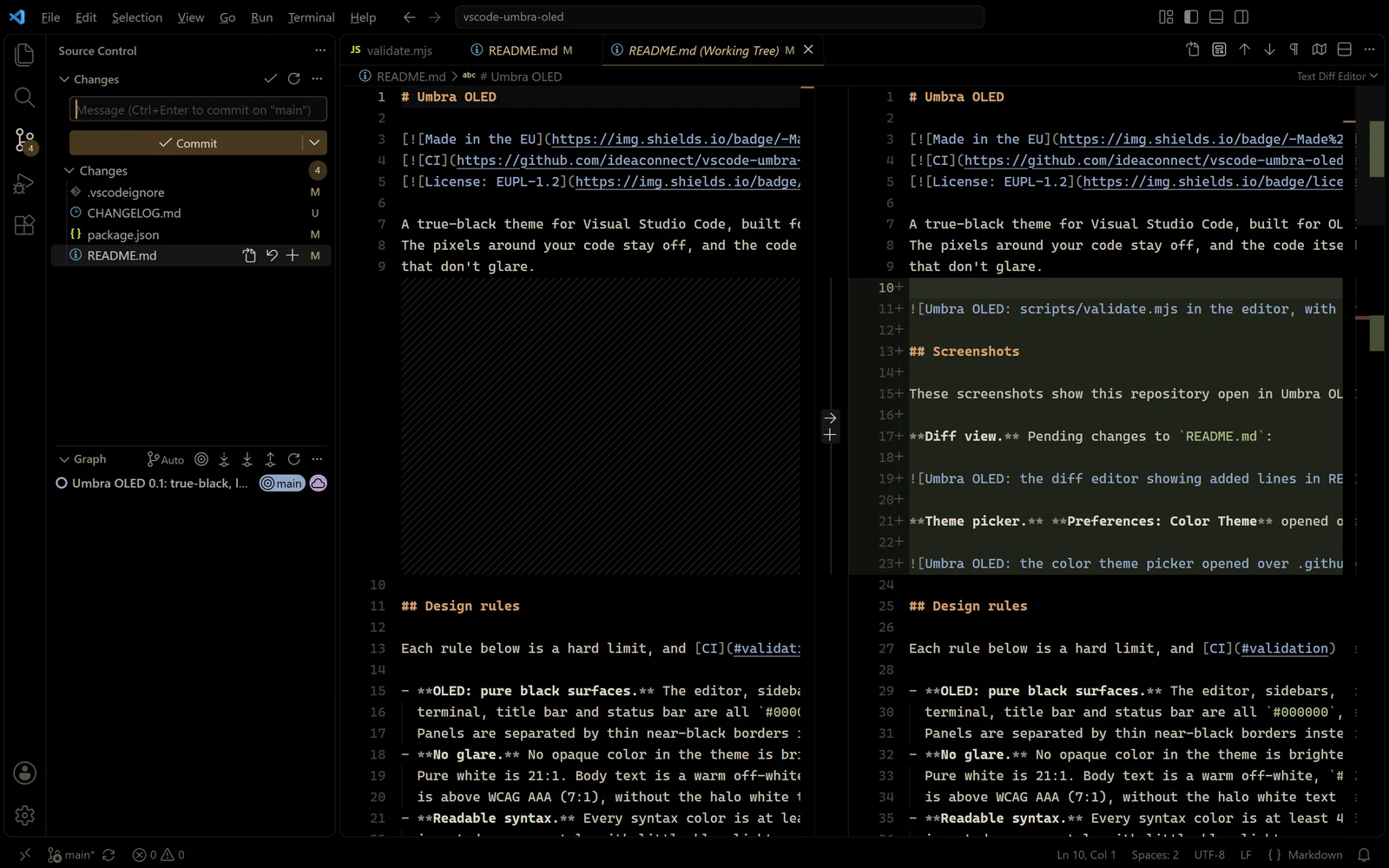
Rules the theme cannot quietly break
Design rules in a README tend to rot. The theme gets one tweak, then another, and a year later the sidebar is gray again. So the rules live in scripts/validate.mjs, a dependency-free Node script (Node 18 or newer) with four checks:
- Manifest: required fields, semver, theme contributions, and on a tag build, that the tag matches the version.
- Theme structure: strict JSON with no duplicate keys, well-formed colors, valid token rules (a scope styled twice is an error) and valid semantic token selectors.
- Color IDs: every key in
colorsmust exist in a real VS Code install. A misspelled or renamed key does not stop a theme from loading, it just quietly has no effect, so this check needs VS Code itself. - Design rules: the OLED, glare and readability limits above.
Run against the current release, with VS Code 1.146.0 unpacked next to it:
node scripts/validate.mjs --vscode-app "$TMPDIR/umbra/VSCode-linux-x64/resources/app"
  Umbra OLED: 523 colors, 44 token rules, 31 semantic rules
  color IDs checked against VS Code 1.146.0

✔ theme is valid
To see the rules bite, this script breaks three of them in a scratch copy: a dark gray sidebar, as many "black" themes have, pure white body text, and comments one notch dimmer.
#!/usr/bin/env bash
# Break three design rules in a scratch copy of the theme and run the validator.
set -u
dir="${TMPDIR:-/tmp}/umbra-broken"
rm -rf "$dir"
git clone -q https://github.com/ideaconnect/vscode-umbra-oled.git "$dir"
cd "$dir"
theme=themes/umbra-oled-color-theme.json

# 1. a dark gray sidebar, as many "black" themes have
sed -i 's/"sideBar.background": "#000000"/"sideBar.background": "#111111"/' "$theme"
# 2. pure white body text
sed -i 's/"editor.foreground": "#c7c0b3"/"editor.foreground": "#ffffff"/' "$theme"
# 3. comments one notch dimmer
sed -i 's/"foreground": "#7d776d",/"foreground": "#5c574f",/' "$theme"

git diff --stat
node scripts/validate.mjs 2>&1 | fold -s -w 88
echo "exit code: ${PIPESTATUS[0]}"
 themes/umbra-oled-color-theme.json | 6 +++---
 1 file changed, 3 insertions(+), 3 deletions(-)
  Umbra OLED: 523 colors, 44 token rules, 31 semantic rules
  color IDs not checked (pass --vscode-app <VS Code resources/app dir>)
error    themes/umbra-oled-color-theme.json: OLED: "sideBar.background" is #111111,
must be #000000
error    themes/umbra-oled-color-theme.json: glare: colors["editor.foreground"] #ffffff
is 21.00:1 vs black (max 15)
error    themes/umbra-oled-color-theme.json: editor.foreground is 21.00:1, must be
between 7 and 13
error    themes/umbra-oled-color-theme.json tokenColors[1] "Comments": readability:
#5c574f is 2.93:1 on #000000, needs at least 4.5

✖ 4 error(s)
exit code: 1
Three edits, four errors and exit code 1: pure white breaks two rules at once, the glare cap and the body text band.
The CI workflow runs this on every push, pull request and tag. It downloads the latest stable VS Code and verifies its SHA-256, so color IDs are always checked against the current release, then runs the validator, packages the .vsix and scans the full git history for leaked secrets with gitleaks. On a version tag, it publishes that exact .vsix to the Marketplace once a maintainer approves the marketplace environment. Publishing uses the Marketplace's Trusted Publishing: GitHub gives the job a short-lived identity token, so no Marketplace token is stored in the repository or in GitHub secrets. Every third-party action is pinned to a commit SHA.
Install it
From the Visual Studio Marketplace: open the Extensions view (Ctrl+Shift+X), search for Umbra OLED and click Install, or from a terminal:
code --install-extension IDCTpl.umbra-oled-theme
From GitHub: every release of vscode-umbra-oled has the .vsix attached, for installing a specific version or installing without the Marketplace:
code --install-extension umbra-oled-theme-<version>.vsix
Or build it from source. The whole package comes to 43 KB: the theme file, an icon, the license, the README and the changelog.
git clone https://github.com/ideaconnect/vscode-umbra-oled.git
cd vscode-umbra-oled
npm run package          # creates umbra-oled-theme-<version>.vsix
code --install-extension umbra-oled-theme-*.vsix
Then pick it with Preferences: Color Theme (Ctrl+K Ctrl+T), or in settings.json. The second line keeps the theme when window.autoDetectColorScheme is on:
{
  "workbench.colorTheme": "Umbra OLED",
  "workbench.preferredDarkColorTheme": "Umbra OLED"
}
A color theme is a UI extension, so it runs on your local machine. Install it locally once and it also applies to remote windows (WSL, SSH, Dev Containers), with nothing to install on the remote host. Extensions are per profile, though, so add --profile "My Profile" to the install command for each profile that should have it.
If scrolling smears
On some OLED panels, a pixel that is fully off takes a moment to turn on, which leaves a faint trail behind moving text. If you see that, give the editor a near-black background, only while Umbra OLED is active:
{
  "workbench.colorCustomizations": {
    "[Umbra OLED]": {
      "editor.background": "#050505"
    }
  }
}
We applied it to the same window as before and measured again:
python3 pixels.py umbra-oled.png umbra-050505.png
screenshot         pixels off   light  blue share
umbra-oled.png          85.2%   1.03%       29.6%
umbra-050505.png        41.9%   1.11%       29.9%
Fewer pixels are fully off now, because the editor area glows very faintly instead. The light output barely moves, 1.11% instead of 1.03%, and the sidebar, tabs, title bar and status bar stay black.
Source and license
Umbra OLED is open source under the European Union Public Licence 1.2 (EUPL-1.2), and it is built in the EU. The vscode-umbra-oled repository has the theme, the validator and the CI setup, and it is the place for issues and pull requests. If the theme makes your late sessions easier, you can support the work through GitHub Sponsors or Buy Me a Coffee.