Do you know Chromis yet? A tour of our free Android photo editor
(android, ai) 13 min read by Bartosz Pachołek
Chromis is our free Android photo editor, and its AI runs on the phone. We took it for a full spin on a 2018 Galaxy S9: cut-outs, object removal, layers, bubbles, collages and export, with screenshots of every step.
Have you met Chromis yet? It's our Android photo editor, it's free, and its AI runs on your phone. It cuts a subject out of a photo, removes things you didn't want in the shot, stacks layers with filters and shadows, adds captions and comic bubbles, builds collages and exports the result. Your photos never leave the phone to be edited.
We've already covered how the on-device cutout and object removal work and what it took to ship 1.4.3. This post is the tour we hadn't written yet. We installed Chromis from Google Play on a Galaxy S9 from 2018 and made three things with it: a lake photo without the coin-operated viewer that stood in front of it, a cartoon robot cut out of its background and set down at that lake with a speech bubble, and a four-photo collage. Every screenshot below comes from that phone. All the inputs are CC0 images from Wikimedia Commons: the photos, and a robot drawn by Sirrob01 for Openclipart, which we put on a plain yellow background so there was something to cut away.
Everything it does, in one list
If you only want the feature list, here it is. The rest of the post walks through it on a real phone.
- Background removal in one tap, with two engines to choose from: Android's built-in ML Kit segmentation, or the open-source U²-Net model bundled in the app. Clean up the edge with a feather slider or an erase and restore brush.
- Remove object: tap something you don't want. Fill in rebuilds the background behind it, Erase cuts it to transparency. Fill has a Best quality and a Low memory mode.
- Layers of photos, text and bubbles: drag, pinch, snap to each other and to the canvas, reorder, hide, duplicate, rename, merge and flatten.
- Effects on any layer: 14 one-tap looks with a strength slider, HDR, vignette, drop shadow, an outline that follows a cut-out's silhouette, and 16 blend modes.
- Adjust: brightness, contrast and saturation from 0 to 200 percent, hue, opacity, plus Scale, Rotation, Horizontal and Vertical sliders for any layer.
- Text and comic bubbles in 17 bundled fonts, the phone's own fonts or a
.ttfor.otffile you import. Five bubble shapes. - Photo grid collages of 2 to 5 photos across 18 layouts, with draggable dividers, a border, rounded corners and frame colours.
- Canvas, crop and image size: presets or your own size, freeform or ratio crops, and a whole-image resize with four resampling methods.
- Export to PNG, JPG or WebP at 100, 75, 50 or 25 percent, saved to the gallery or shared to another app. PNG and WebP keep transparency.
- Projects save themselves, and you can undo and redo anything.
- English, Polish, German, Spanish, French and Czech; light and dark themes; phones and tablets, portrait and landscape; Android 8.0 and newer.
- Free, supported by ads. One purchase removes the ads, and no account is needed.
The phone we used
Our test phone is a Galaxy S9 from 2018, so nothing in this post needs a new flagship. This is the phone, as adb sees it:
adb shell getprop ro.product.model
adb shell getprop ro.build.version.release
adb shell grep MemTotal /proc/meminfo
adb shell dumpsys package tech.idct.chromis | grep -E "versionName|installerPackageName"
SM-G960F
10
MemTotal:        3697596 kB
    versionName=1.4.3
    installerPackageName=com.android.vending
A Galaxy S9 on Android 10 with about 3.5 GiB of RAM, and Chromis 1.4.3 installed by the Play Store.
Home and settings
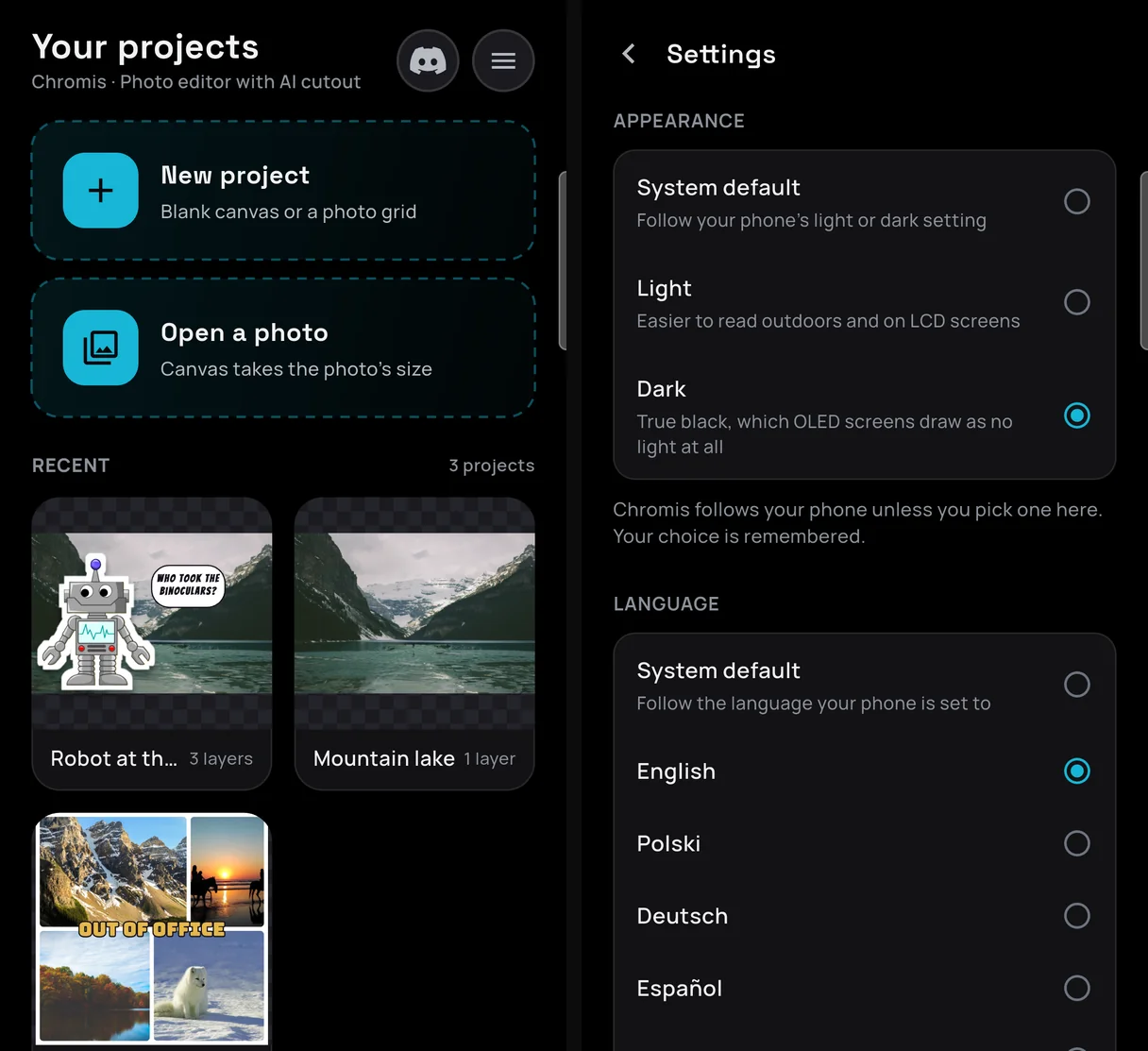
The home screen has two ways in. New project starts a blank canvas or a photo grid. Open a photo starts a project whose canvas takes the photo's size. Below them, Recent shows your projects with live previews of what's actually in them. The screenshot was taken after our three edits. Nothing needs saving: every change is written as you make it, so you can close the app mid-edit and carry on later.
Settings holds the two choices most people care about. The theme follows the phone unless you pin Light or Dark. Dark is true black, which an OLED screen draws by switching those pixels off. The language follows the phone too, or you can pin any of the six. Each language is listed in its own script, so you can find your way back from one you can't read.
Cut the subject out
Our subject is a cartoon robot, picked for its crisp edges. We opened the lake photo with Open a photo (the cleaned-up version from the object removal further down), put the robot picture on top with Add layer, and tapped AI Cut with the robot layer selected. Every tool works on the selected layer, so you can cut out a picture you've just added without starting a new project. The Background tab offers two engines:
- Built-in AI is Google ML Kit's subject segmentation. It runs on the phone, and Play services downloads its model the first time.
- U²-Net is an open-source model that ships inside the app, so it works offline from the first launch. The app describes it as having sharper detail, and it's the one we used. On the S9 the robot was cut out a few seconds after the tap.
Auto-refine edges cleans up stray specks around the subject. After the cut, an Edge feather slider softens the edge before you apply the mask to the layer.
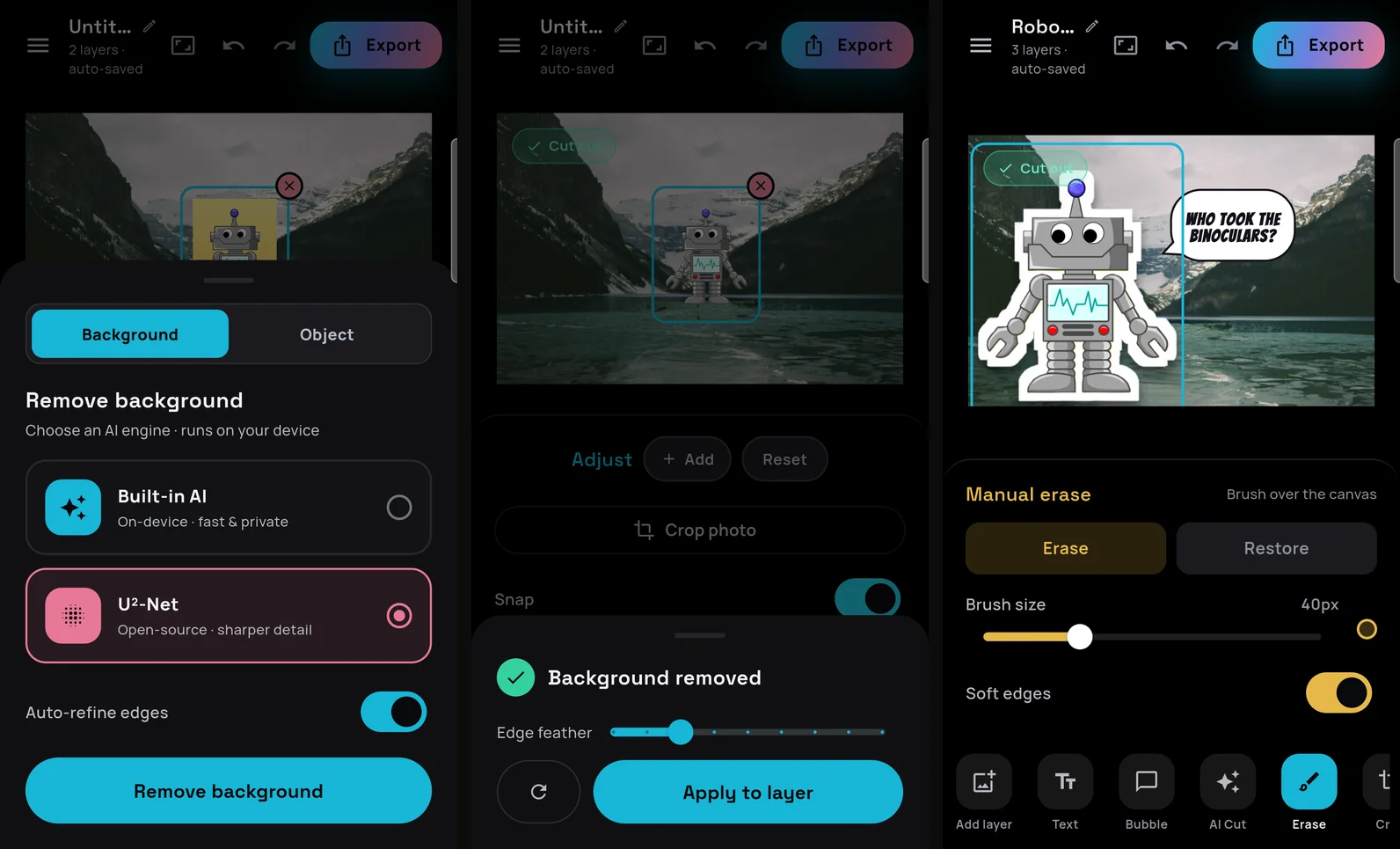
A cut is only as clean as the picture lets it be, and our first attempt showed it. We started with the robot in front of a few pale circles. U²-Net kept one of the circles and dropped the ball on top of the antenna. On a plain yellow background, with the robot a little bigger in the frame, it got the whole robot, down to the gaps in its claws. So if a cut keeps something it shouldn't, try a shot where the subject stands out more before you reach for the brush.
Hair, fur and fuzzy edges are hard for any model, so the Erase tool is right next door. It's a manual brush with Erase and Restore modes, an adjustable size and soft edges. The cut lives in the layer's mask, not in the photo's pixels, so Restore can always bring back what the AI or your thumb took away. The original file on your phone is never modified.
Layers, effects and a speech bubble
The cut-out robot already stood on the lake, but as a small figure in the middle of the photo. We scaled it to 224 percent with the Scale slider in Adjust and moved it to the left with the Horizontal slider. In the Layers panel we renamed the two image layers to Robot and Lake. Each row in that panel can be hidden, duplicated, deleted or renamed, and dragged to change the order. Merge down and Flatten combine layers, each in a single undo step.
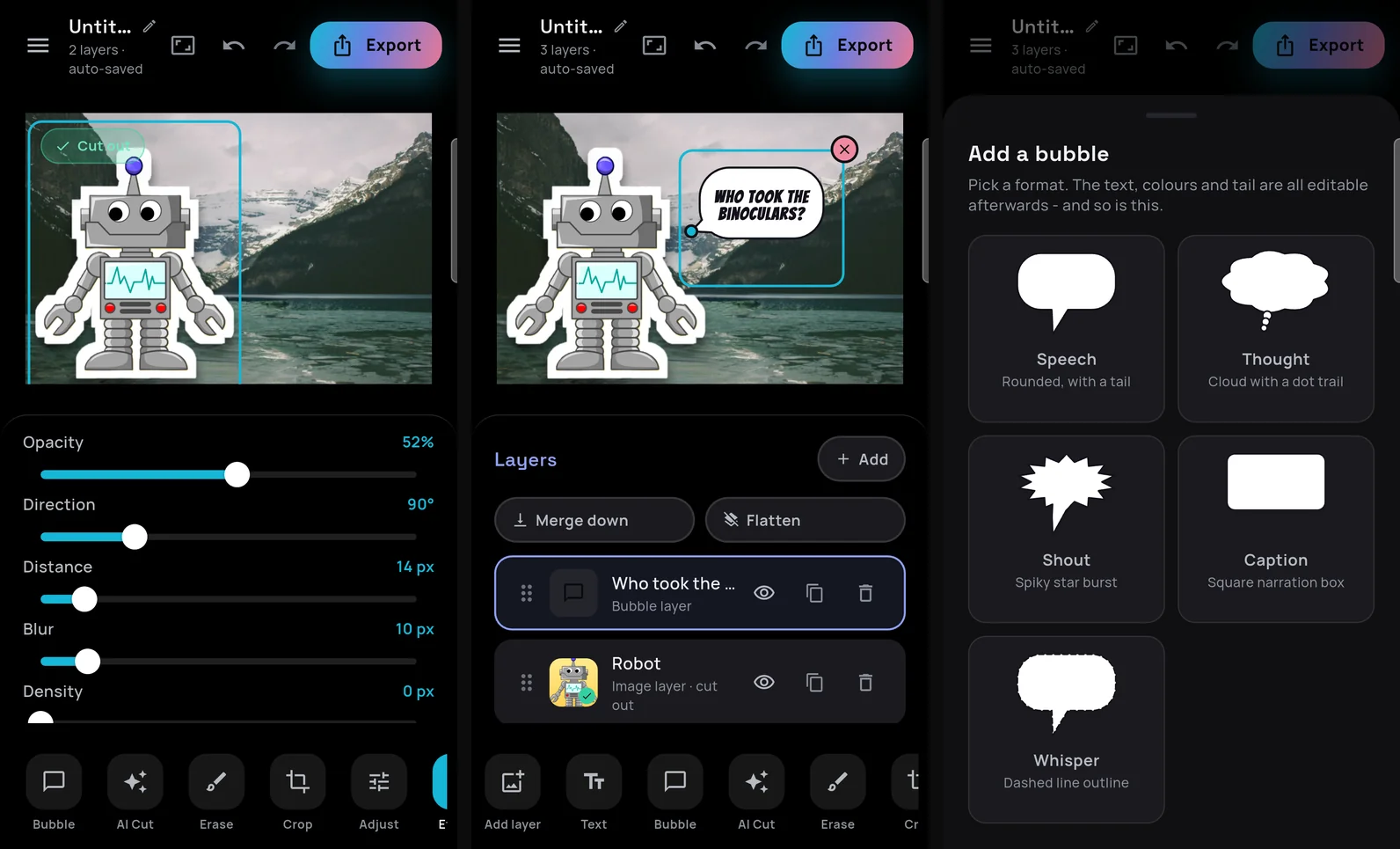
Then the effects. Every layer has its own Effects panel, which works from top to bottom:
- Filter: Original plus 14 looks (Vivid, Punch, Chrome, Warm, Cool, Sunset, Dawn, Dusk, Fade, Matte, Retro, Sepia, Mono and Noir), each with a Strength slider.
- HDR: one "Tone + detail" slider that lifts shadows and adds local contrast.
- Vignette, in nine colours with size and softness. On a cut-out it follows the subject's outline instead of shading a rectangle.
- Shadow: opacity, direction, distance, blur and density. It travels with the layer, so a rotated sticker keeps its shadow.
- Cutout outline: a stroke grown from the layer's own silhouette. A 15 px white one gave our robot its die-cut sticker edge, with a 52 percent shadow under it.
- Blend: 16 modes, from Normal, Multiply and Screen through Dodge, Burn and the light modes to Difference, Exclusion, Hue, Saturation, Color and Luminosity.
Placement has its own tools in Adjust. With Snap on, a dragged layer settles onto the edges and centres of the other layers and the canvas, and a guide line shows what it caught. A pinch can match a neighbour's size too. The Scale, Rotation, Horizontal and Vertical sliders move any layer, which matters when a layer is too small to grab or buried under another one.
Last, Bubble. Chromis has five shapes: Speech, Thought, Shout, Caption and Whisper. You type the text and pick a font, a size, a fill and an outline colour, then drag the tail to point at whoever is talking. We chose Speech, kept the default Bangers font, scaled the bubble up with the same Scale slider and pointed the tail at the robot. It asks the obvious question, if you know what stood at that lake before:
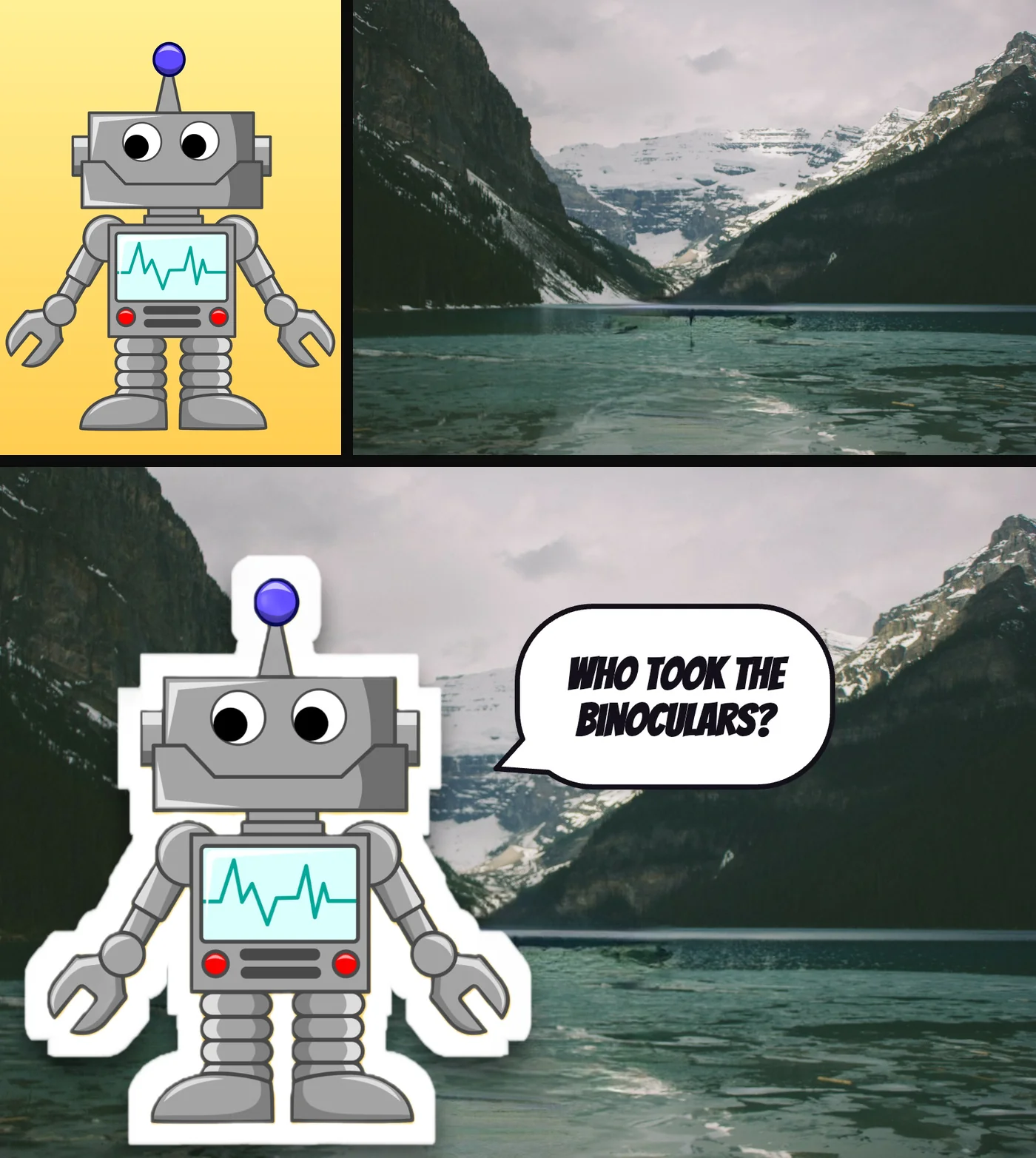
On top are the two inputs: the robot drawing as we gave it to the app, and the lake as Chromis exported it after the object removal below. Under them is the file Chromis exported: one cut, an outline and a shadow on the robot, and a bubble. The edge is clean all the way round, even between the prongs of the claws.
Fonts for captions and bubbles
Text layers and bubbles share one font picker. It lists the 17 fonts that ship in the app, each drawn in its own typeface: Bangers, Luckiest Guy, Pacifico, Space Grotesk, Rubik, Comic Neue, Kalam, Patrick Hand, Caveat Brush, Mali, Titan One, Bungee, Anton, Lobster, Shrikhand, Press Start 2P and Special Elite. Every one of them covers all six app languages, so a Polish ą or a Czech ř never falls back to a different typeface halfway through a word.
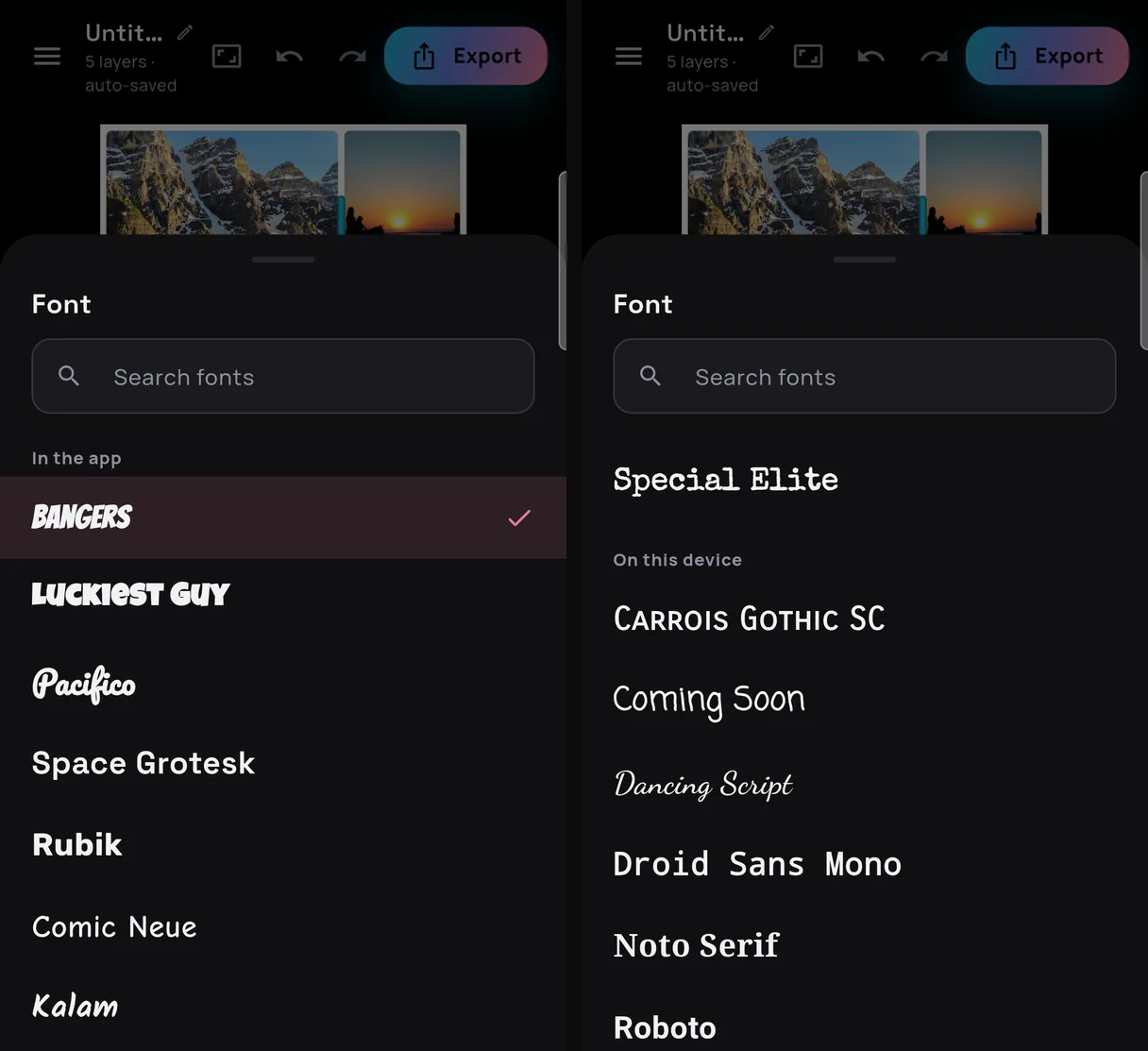
Under On this device, Chromis also offers the fonts already on the phone. It only shows those whose own font file declares the SIL Open Font License or the Apache License 2.0. Phone makers ship their own faces, licensed for their software, not for pictures you make in another app. On the S9 that left eight, including Roboto, Noto Serif and Dancing Script. Import a font file takes any .ttf or .otf you have, and a search field keeps the list manageable.
Remove what you didn't want in the shot
The lake photo came with a coin-operated viewer right in front of it, the binoculars our robot is asking about. You open the same AI Cut tool, switch to the Object tab and tap Tap objects to remove. The panel then offers the choice most editors skip: what should go where the object was?
- Fill in rebuilds the background from the rest of the photo. It's the default, because "remove this" means a closed background to nearly everybody.
- Erase cuts the object out to transparency. Use it when the result will go onto a different backdrop anyway.
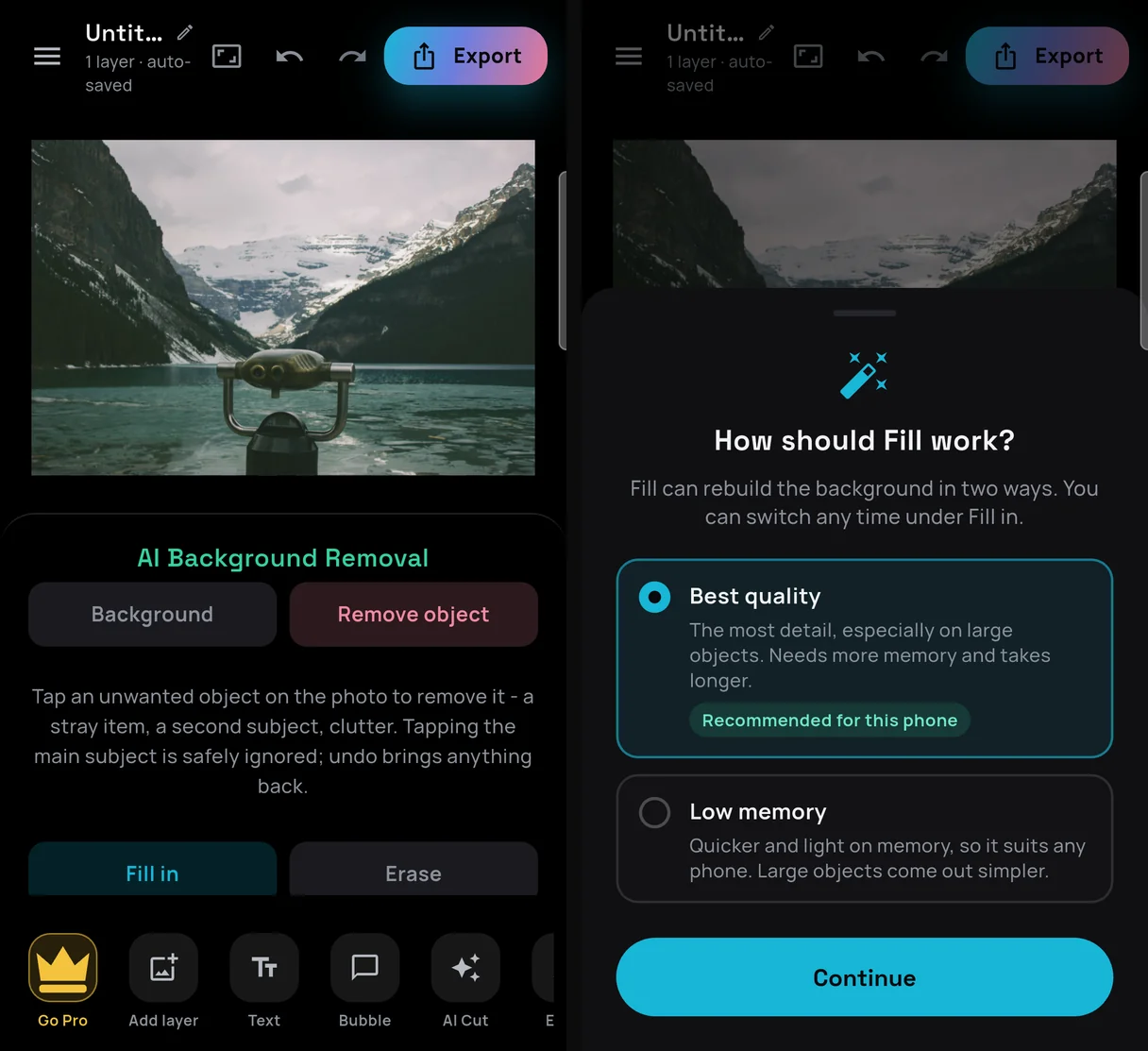
The first time you fill, Chromis asks how. Best quality runs MI-GAN, a 27 MB image-completion model bundled in the app. Low memory uses a content-aware fill that needs a fraction of the memory. The sheet preselects a guess for your phone: Low memory if it has less than 3 GiB of RAM or less than 1 GiB free, Best quality otherwise. The S9 got Best quality, marked "Recommended for this phone". You can switch later under Fill in.
A tap turns into a selection through MobileSAM, so you get the whole object rather than a fingertip-sized blob. Tapping your main subject is ignored, and undo brings anything back. Our viewer took three taps, one each for the head, the post and the bracket, because each tap selects the part under your finger. On the S9 each Best quality tap took 15 to 21 seconds from tap to the "Object filled in" message. We timed it with a script that checked the screen about once a second, so treat that as a rough figure.
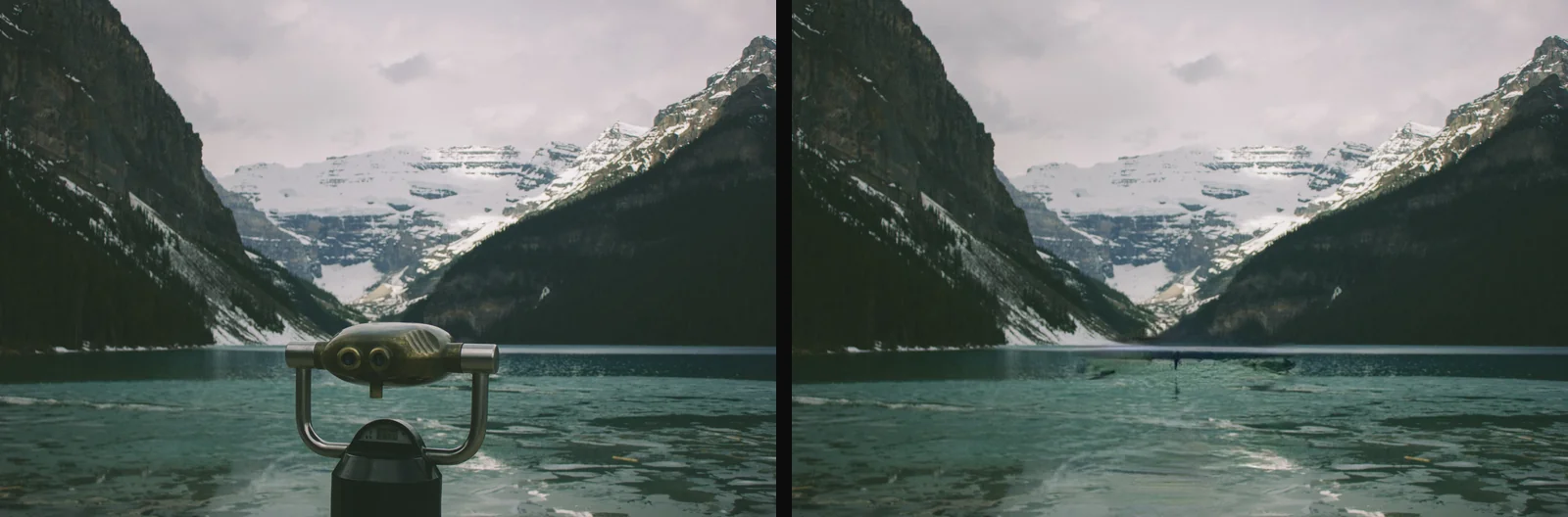
Is Best quality worth the wait? We undid the removal and repeated it in Low memory mode. That took four taps of 3 to 11 seconds each. Both results are below, cropped from the editor on the phone:
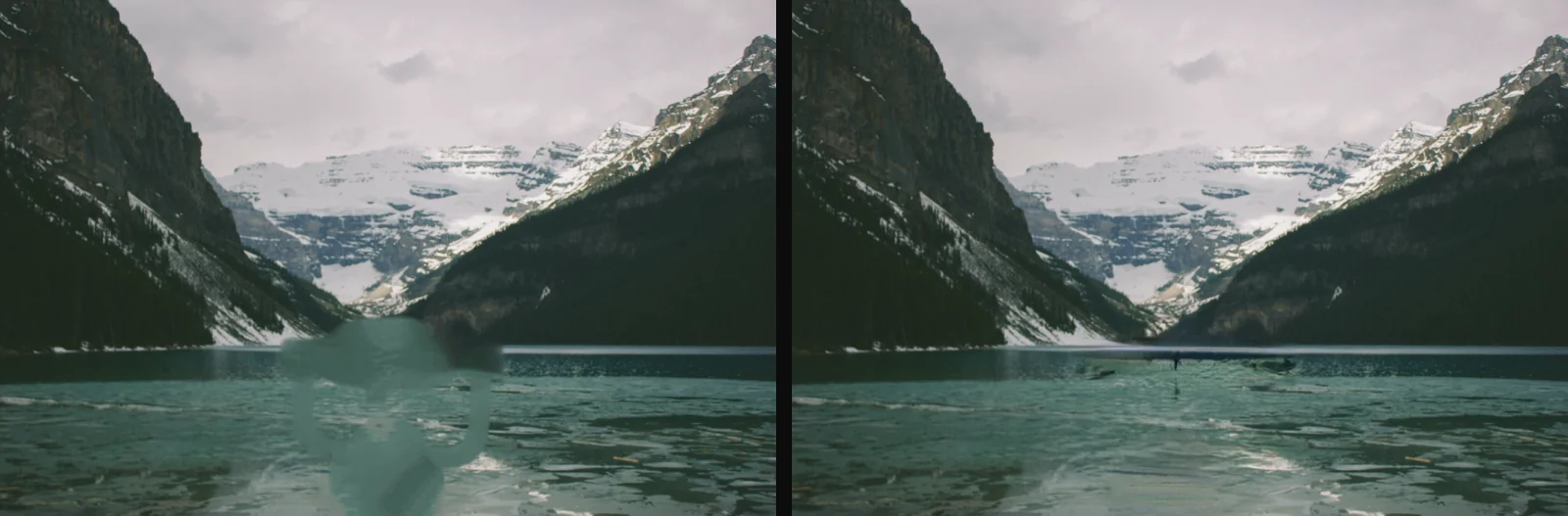
Low memory, on the left, closes the hole, but with a smooth patch that reads as a smudge up close. Best quality, on the right, rebuilds the ripples. On a phone with plenty of RAM, Best quality is the one to keep. On a 2 GB phone, Low memory keeps the app responsive and still leaves scenery rather than a hole. Tap-to-select itself needs 2.5 GB of RAM. Below that, Chromis says so instead of risking a crash mid-edit, and the simpler selection still works.
A collage in a few taps
For the third project we chose New project, then Photo grid. You pick how many photos (2 to 5), a layout and a size: Square, Portrait, Story or Landscape. There are 18 layouts, named the way you'd describe them. Two photos get four (Side by side, Stacked, Wide left and Tall top), three photos get four (Columns, Rows, Big left and Big top), and four and five photos get five each, from 2 x 2 to "2 left, 3 right". Then you tap each cell and pick a photo.
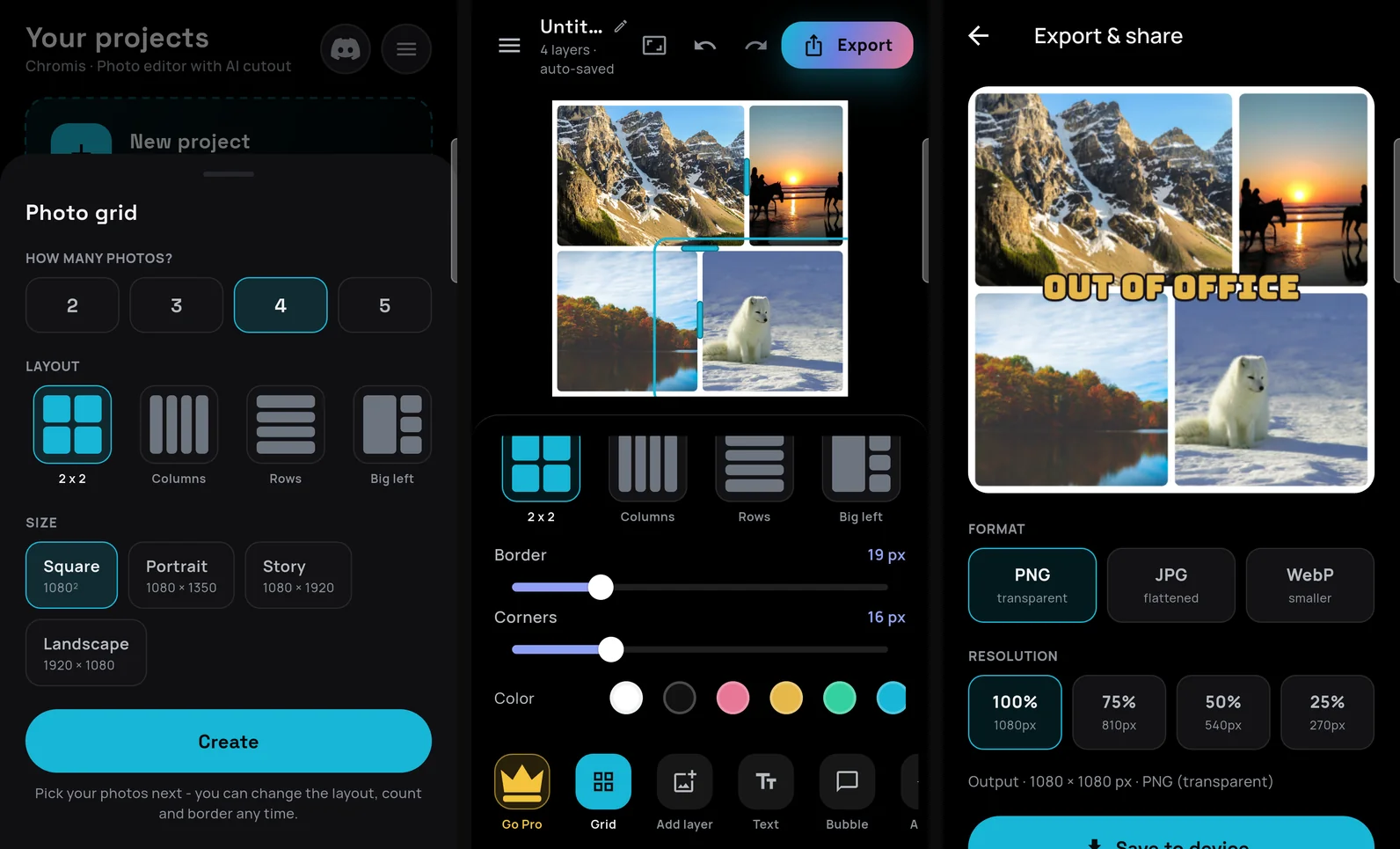
Dragging a divider trades space between exactly the two cells beside it. In our collage the top row's divider moved right, and the bottom row stayed as it was. Border (0 to 80 px) sets the gaps and the outer frame in one go, Corners (0 to 60 px) rounds every cell, and there are nine frame colours. We used a 19 px white border with 16 px corners.
A grid is just a layout on the same canvas, so every other tool works inside it. You can cut a subject out of one cell, put a filter on another, or drop text across the middle. We did the last of those: "OUT OF OFFICE" in Bungee, amber with a black outline, scaled up with the same Scale slider as any other layer. Shuffle mixes the photos, and dragging one photo onto another swaps them. Count, layout, border and colour stay editable for the life of the project.
Size, crop and export
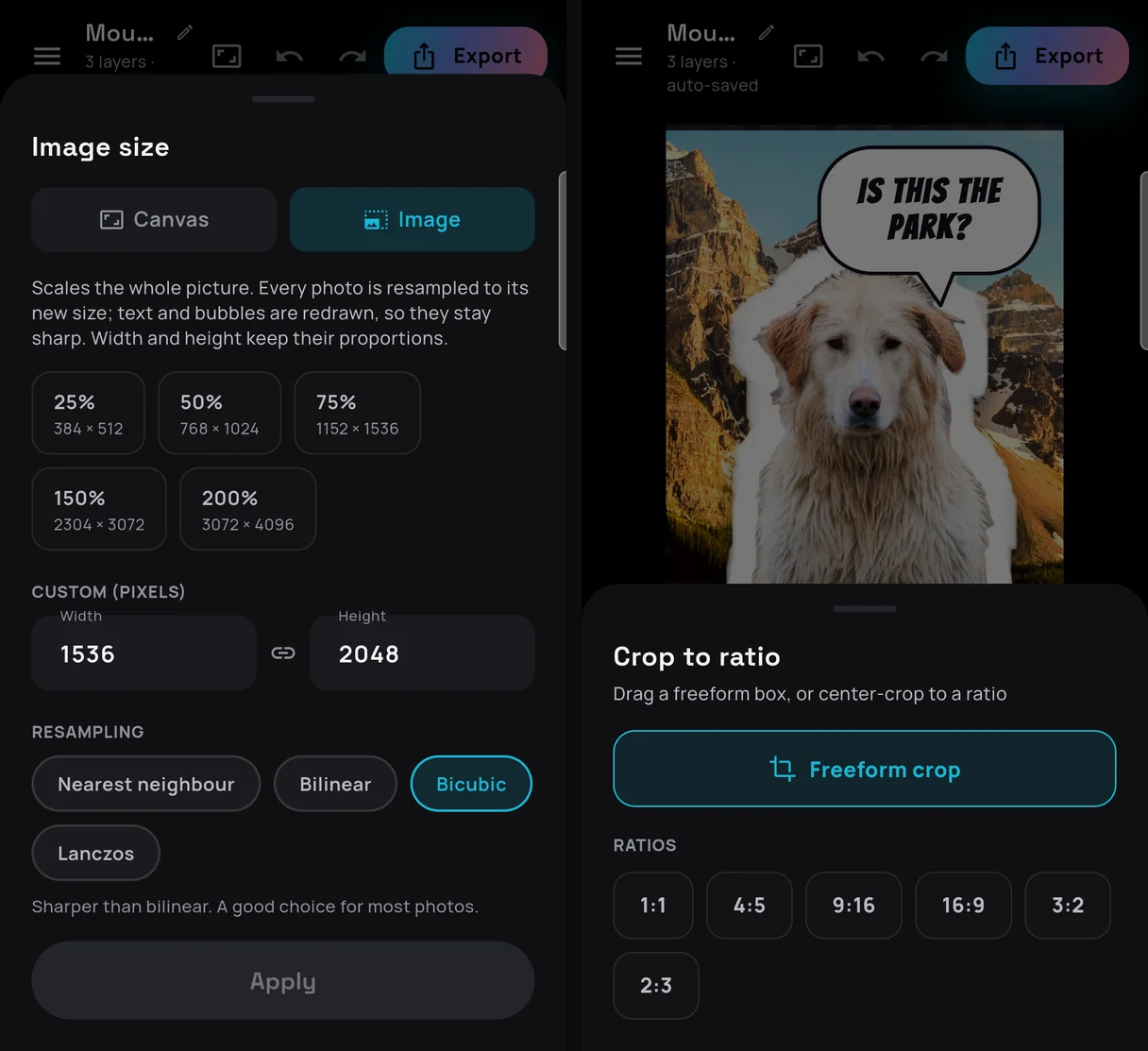
The size button in the top bar opens one sheet with two tabs:
- Canvas changes the canvas around your layers. Presets are Square 1080², Portrait 1080 × 1350, Story 1080 × 1920, Landscape 1920 × 1080, Wide 1620 × 1080 and Small 512², or you type your own size.
- Image scales the whole picture to 25, 50, 75, 150 or 200 percent or a custom size, with Nearest neighbour, Bilinear, Bicubic or Lanczos resampling. Text and bubbles are redrawn at the new size rather than stretched.
Crop is freeform or one of 1:1, 4:5, 9:16, 16:9, 3:2 and 2:3. Export offers PNG (with transparency), JPG (flattened) or WebP (smaller), at 100, 75, 50 or 25 percent of the canvas. Below the options it shows the exact output, for example "1080 × 1080 px · PNG (transparent)". Save to device writes the file to the gallery and Share sends it straight to another app. These are our three exports, still on the phone:
adb shell ls -l /sdcard/Pictures/Chromis/
total 2264
-rw-rw---- 1 root sdcard_rw 1635314 2026-11-19 14:50 Chromis_1795096217689.png
-rw-rw---- 1 root sdcard_rw  337798 2026-11-19 14:54 Chromis_1795096451543.jpg
-rw-rw---- 1 root sdcard_rw  336429 2026-11-19 15:41 Chromis_1795099312101.jpg
That's the collage as a 1080 × 1080 PNG, the lake as a 1600 × 1067 JPG and the robot at the lake, also 1600 × 1067, as a JPG. Saving to the gallery asked for no permission at all on this Android 10 phone. Only Android 9 and older ask for storage access, and only at the moment of the first save.
Turn the phone sideways
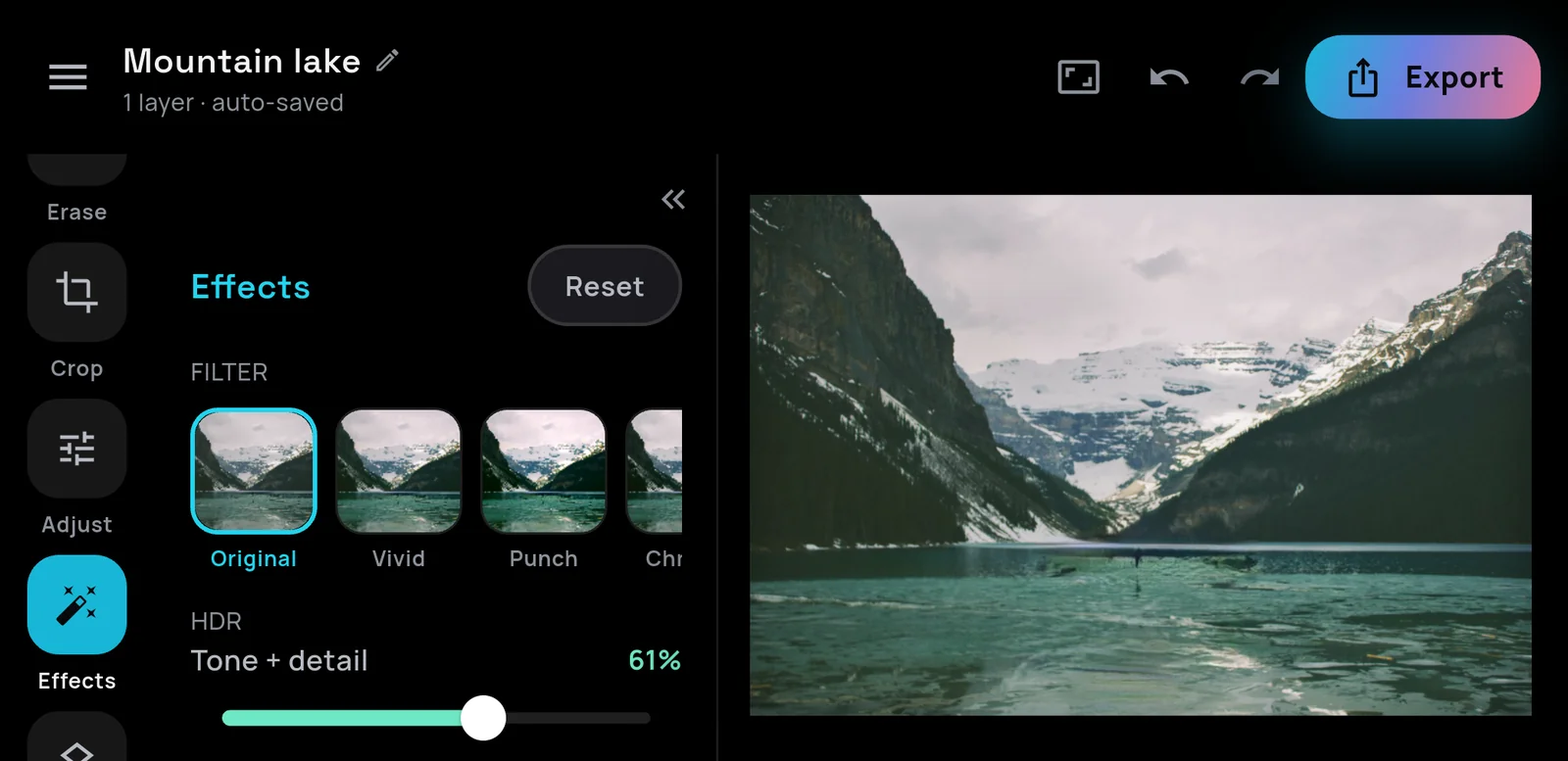
Rotate the phone and the tool dock becomes a rail down the left edge, with the panel folding out beside it, so the photo gets the width. Tablets get the same layout with a bigger canvas. The screenshot shows the HDR slider at 61 percent on the lake photo.
Private, and free
Chromis was built around one sentence: erase the background, not your privacy. In practice:
- Every edit, AI included, runs on the phone. Photos are never uploaded to be edited.
- You pick photos through the Android photo picker, which hands Chromis only the picture you chose. The app has no permission to read your photo library and asks for no camera or location access.
- Android's Auto Backup is switched off in the app's manifest, so Android doesn't copy the photos you import into your Google Drive.
- The models ship inside the app, so editing works offline. The connection is for ads, purchases and the consent form, plus ML Kit's one-time model download.
- There's no account and no sign-in.
Ads pay for it, and they appear only where the app says they will: a banner on Home, a short ad you choose to watch before an export, and one per editing session for the AI tools. In the EEA, UK and Switzerland, a consent form on first launch lets you decline personalised ads, and Menu → Privacy & Cookies → Ad privacy choices lets you change that answer later. One optional purchase, Go Pro, removes every ad for good. It unlocks nothing else, because nothing else is locked.
Get Chromis
Chromis is free on Google Play for Android 8.0 and newer. More screenshots, the effects lab and the FAQ are on the Chromis software page. If a photo trips it up, or you'd like a feature or an iPhone version, tell us through the contact page.